What size is the sign?
We'll map the controller and each section's video card for this size.
×
Preparing your PDF…
Building the troubleshooting instructions for {{ pdfFor }}. This takes a few seconds.
✓
Your PDF has downloaded
Check your downloads folder for {{ pdfName }}.
Free diagnostic tool
Sign acting up? Let's figure out which part failed.
Answer a few quick questions and we'll pinpoint the likely faulty component. Works for any sign — we'll show the NovaStar-equivalent part, so just match it to the model inside yours.
Heads up: the next steps assume you, or a contractor, can safely access the sign to complete them.
{{ kicker }}
{{ question }}
{{ qAudioScript }}
{{ accessIntro }}
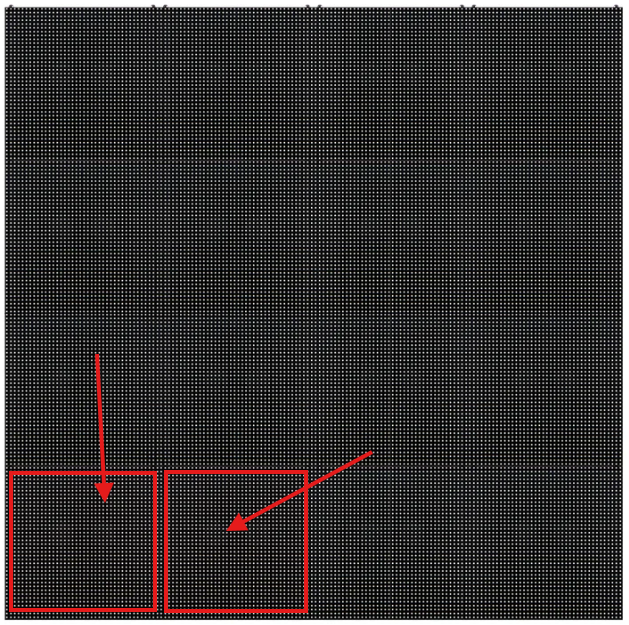
Where to look: the two boxed modules near the bottom sit in front of the electronics — remove the left module to reach the controller (TB20), and the right module to reach the MRV receiving card.
{{ s.n }}
{{ s.text }}
{{ accessInstallHeading }}
{{ s.n }}
{{ s.text }}
Applies to signs purchased after 2020 (X Series modules).
Where the controller and cards sit
Example: a sign 6 modules wide × 3 tall, seen from the front. Each square is one module — the controller and receiving card sit behind the two marked modules, so those are the ones you remove.
Controller (TB20) — behind the bottom-left module
Receiving card — bottom row, 2nd module of each section
1 — Open the bottom-left two modules
{{ t.tag }}
Bottom-left corner of the sign, seen from the front. The TB20 controller sits behind the first module and the MRV receiving card behind the second.
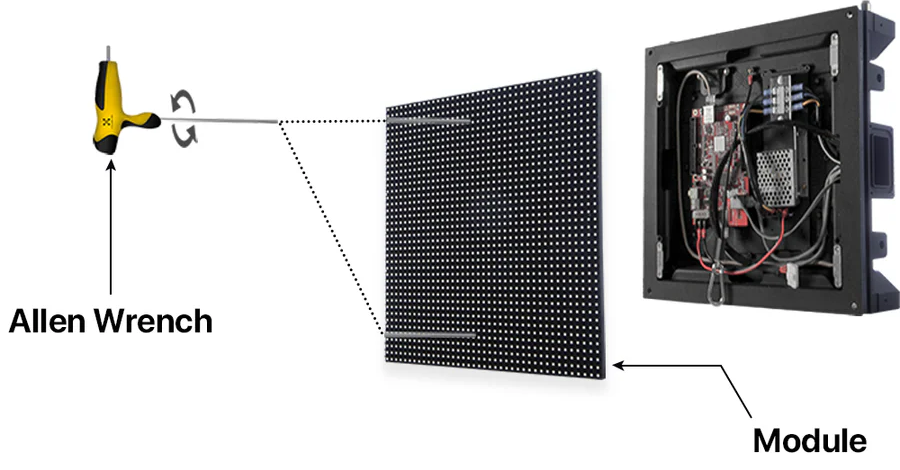
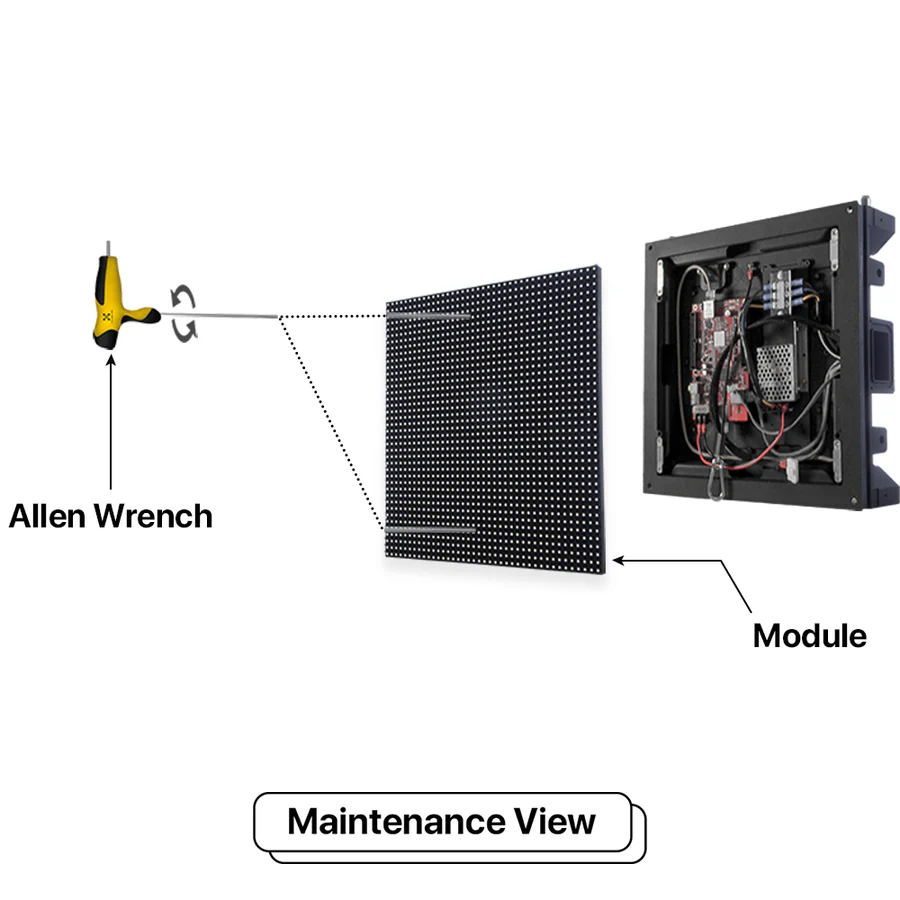
To remove each module: insert a 3mm hex key into the two lock points on the module face and turn counterclockwise, then lift the module out and unclip its power cable, ribbon cable and safety hook.
▶Watch: removing & reinstalling a module▾
Removing a module
Reinstalling a module
2 — Unplug the TB20 cable from port #1 on the MRV
TB20 controller
MRV receiving card
1unplug
2leave
3 — Press the TEST button on the MRV twice
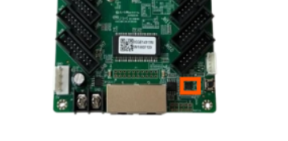
The TEST button is boxed in orange, next to the network ports. A healthy card lights its section with a test pattern.
The two modules you opened
TB20
MRV · port 1
{{ qImgCap }}
Which app are you using?
{{ s.n }}
{{ s.text }}
{{ o.audioScript }}
Heads up: the next steps assume you, or a contractor, can safely access the sign to complete them.
{{ kicker }}
{{ question }}
{{ accessIntro }}
{{ f.title }}
Controller (TB20) + PoE adapter — bottom-left module, first section only
Receiving card (MRV) + its RS-15 supply — bottom row, 2nd module of each section
Heads up: the next steps assume you, or a contractor, can safely access the sign to complete them.
{{ kicker }}
{{ question }}
{{ accessIntro }} {{ colHint }}
{{ f.title }}
Viewed from the front — left is left. Dark tiles marked: {{ darkCount }}{{ dblNote }}
Likely diagnosis
{{ recTitle }}
{{ recBody }}
Quick check: {{ logicNote }}
Your sign — {{ gw }} wide × {{ gh }} tall, as you marked it. Each module outlined in yellow hides the HSP 300-5 that feeds a fully dark power zone.
{{ f.title }}
Built as {{ sectionCount }} section{{ sectionPlural }} (yellow seams) — the same split as our Assembly Planner. Power zones never cross a seam.
Dark tiles you marked
Controller (TB20) + PoE adapter
Receiving card (MRV) + RS-15 supply, per section
Check 1 — remove this module; the failed power supply sits behind it
Check 2 — supply for a partly dark zone; test 5V here before replacing the module
Zones: within each section, the bottom 3 modules of a column share one supply behind the middle module; a top row is fed in pairs. Our builds couple a maximum of 3 modules to one supply. If your sign was assembled from different section sizes than shown, the supply sits one module up or down from the highlight — check both.
Your sign — {{ gw }} wide × {{ gh }} tall, built as {{ sectionCount }} section{{ sectionPlural }}. Tap any section to switch it on or off — the diagnosis updates as you go. The module outlined in yellow is the one to remove — the card to check sits behind it.
{{ f.title }}
Signal chain
{{ ch.letter }}
Signal enters at A and runs section to section in this order — a red arrow marks the break. Power runs (one breaker feed each, jumpers between stacked sections): {{ runLabel }}. Same layout as our Assembly Planner.
On
Off
Controller (TB20)
Receiving card (MRV) + RS-15
Remove this module — receiving card + RS-15 behind it
Ready to pinpoint the exact part?
{{ tsCtaSub }}
{{ zoomTitle }}
{{ zoomNote }}
Insert a 3mm hex key into the two lock points on the module face and turn counterclockwise, then lift the module out and unclip its cables. Full steps below under "How to open the sign".
▶Watch: removing & reinstalling a module▾
Removing a module
Reinstalling a module
{{ mrvTitle }}
The receiving card sits behind the module you removed. The TEST button is boxed in orange, beside the network ports labelled 1 and 2. The RS-15 supply is mounted right beside the card.
Where's the controller on your sign?
×
{{ locSecLabel }}
TB20 controller (bottom-left module)
{{ locMrvLabel }}
{{ locNote }}
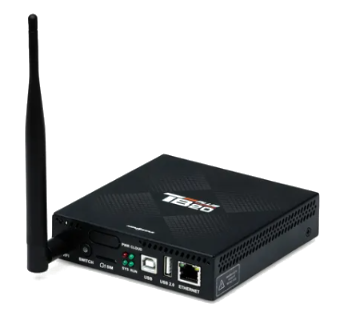
TB20 controller — behind the bottom-left module.
{{ locMrvTitle }} — {{ locMrvCap }}
CPE 210 antenna — mounted outside on the pole, cabled down to the PoE adapter.
{{ im.caption }}
Signs built after 2020 use the tool-free X Series module — remove a module from the face of the sign to reach the electronics behind it:
{{ s.n }}
{{ s.text }}
{{ accessInstallHeading }}
{{ s.n }}
{{ s.text }}
Applies to signs purchased after 2020 (X Series modules).
Possible replacement{{ partsPlural }}
Important — match your exact part. This tool identifies which component has failed, not the brand in your sign. The part shown is the NovaStar equivalent; the same diagnosis applies whether your sign runs Huidu, DBStar or another controller. Because these parts are not cross-brand interchangeable, always order the version and model number that matches the part already inside your sign — if it differs from what's shown, confirm compatibility with us first.
Not 100% sure this is it?
Our techs will confirm the exact part before you buy — free.
This tool suggests the most common cause based on the symptoms you describe. The solutions provided assume that you are, or have contracted, someone who can safely access the sign to carry out the recommendations. Final part confirmation is always available from our support team.